Back to Maintenance Manager for Education Main Menu
Blocking and Unblocking a Work Order
Administrators and Technicians can block or unblock a work order to indicate that work cannot proceed until a specific issue is resolved.
Follow the below steps to specify a reason and update the work order’s status.
NOTE Only Workorders status with New and In Progress can be blocked or unblocked.
To Block a Work Order
-
Select a Work Order.
-
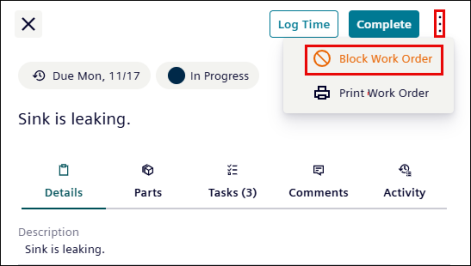
Click
 icon.
icon. -
Click the Block Work Order.
-
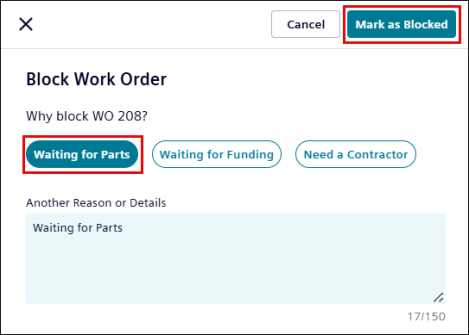
Select or enter the reason for blocking a work order.
-
Click Mark as Blocked.
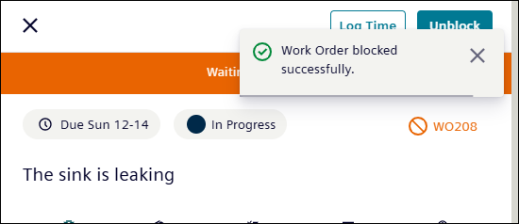
A ‘Work Order blocked successfully’ pop-up message appears.
To Unblock a Work Order
-
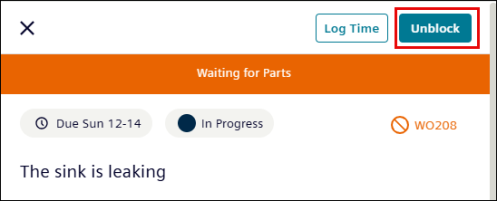
Click the Unblock button.
-
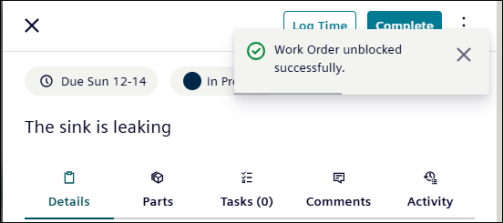
Upon Unblock, ‘Work Order unblocked successfully’ pop-up message appears.